
Summary:
You can install Webroot SecureAnywhere from your account to protect your computer from malware and viruses.
If you purchased Webroot from Webroot.com or from a store, you can Add a Webroot SecureAnywhere Keycode to your account to manage your subscription.
This article applies to:
| Products | Platforms |
| Webroot SecureAnywhere - View the Safe article | Windows - View the Mac article |
Solution:
- Sign into your account at https://account.carbonite.com.
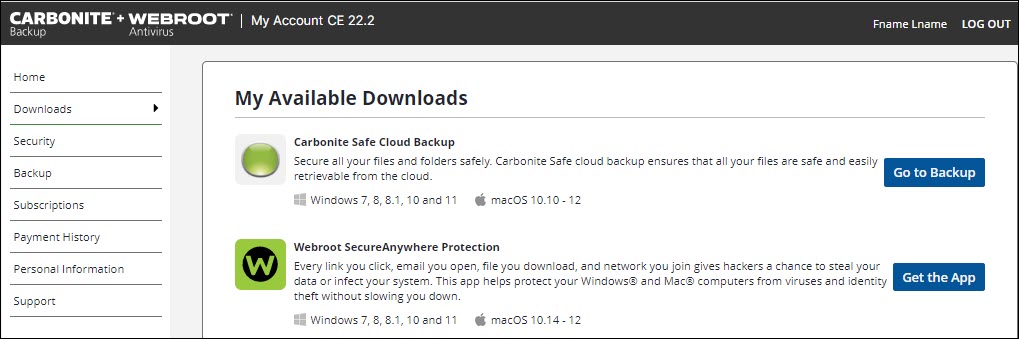
- Go to the Downloads tab.
- Under Webroot SecureAnywhere Protection, click Get the App.
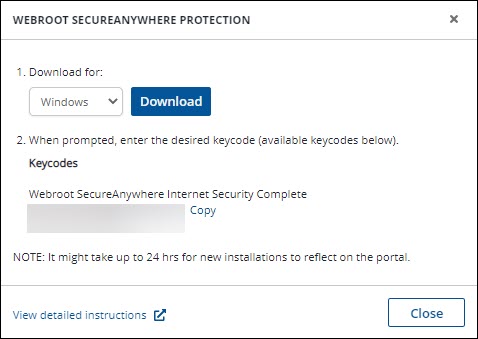
- Click Copy next to your keycode.
- Choose Windows from the dropdown menu and click Download.
- Depending on your web browser, use the instructions below to open Webroot SecureAnywhere.
- Google Chrome: The downloaded file appears at the bottom left of the browser. Double-click the Webroot file to open it.
- Mozilla Firefox: Click Save in the pop-up message that appears to start the download. When the download completes, click the arrow in the top right corner of your browser to view your downloads. Double-click the Webroot file to open it.
- Microsoft Edge: The download appears at the bottom of the browser. Click Run to open the Webroot file.
- Paste your Webroot SecureAnywhere keycode from earlier and click Agree and Install.
- Within the User Account Control window that appears, click Yes.
- Webroot will also install Web Threat Shield which is a browser extension for Google Chrome and Mozilla Firefox. When enabled, this will identify and block dangerous websites from loading on your browser.
- If desired, enter your email address to register for free support, alerts of global security threats, and to be updated of product protection updates and click Continue.
Webroot will start scanning your computer for malware and viruses.
Thanks for your feedback!
Powered by NOHOLD Inc. U.S. Patent No. 10,659,398
All Contents Copyright© 2025