| Webroot: | Summary:
You can install SecureAnywhere on macOS 14 (Sonoma) and above. An Internet connection is required to install the software.
This article applies to:
| Products |
Platforms |
| Webroot SecureAnywhere |
Apple |
Solution:
- Sign in to your account at https://account.carbonite.com.
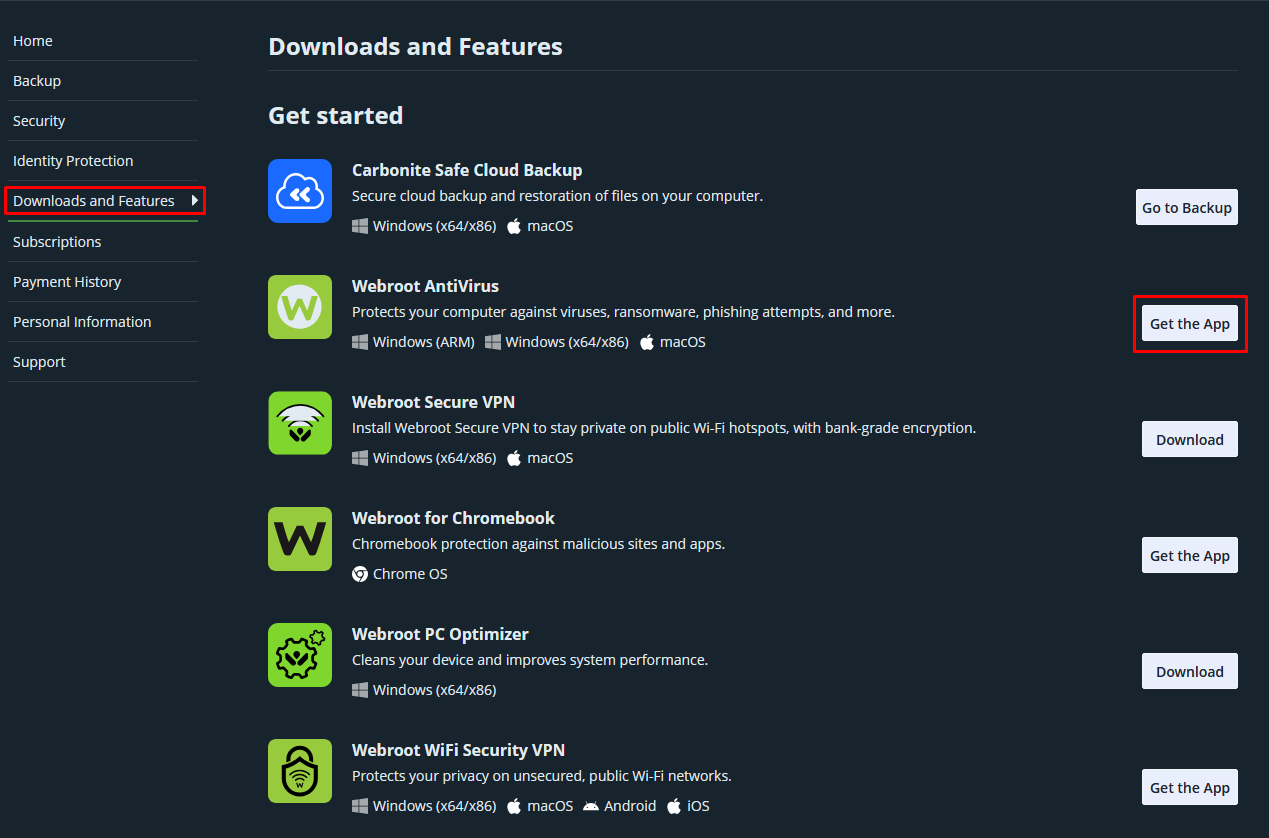
- Under Downloads and Features, click Get the App.
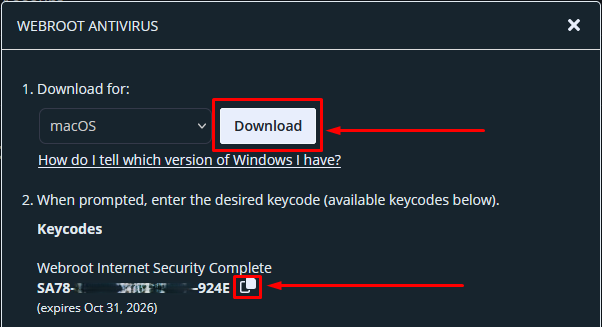
- The dropdown will automatically detect your operating system. Click Download and then the Copy icon next to your subscription key.
- Depending on your web browser, use the instructions below to open Webroot SecureAnywhere.
- Google Chrome: The downloaded file appears at the bottom left of the browser. Double-click the Webroot file to open it.
- Mozilla Firefox: Click Save in the pop-up message that appears to start the download. When the download completes, click the arrow in the top right corner of your browser to view your downloads. Double-click the Webroot file to open it.
- Safari: When the download completes, click the arrow in the top right corner of your browser to view your downloads. Double-click the Webroot file to open it.
- Open the WSAMAC.pkg file.
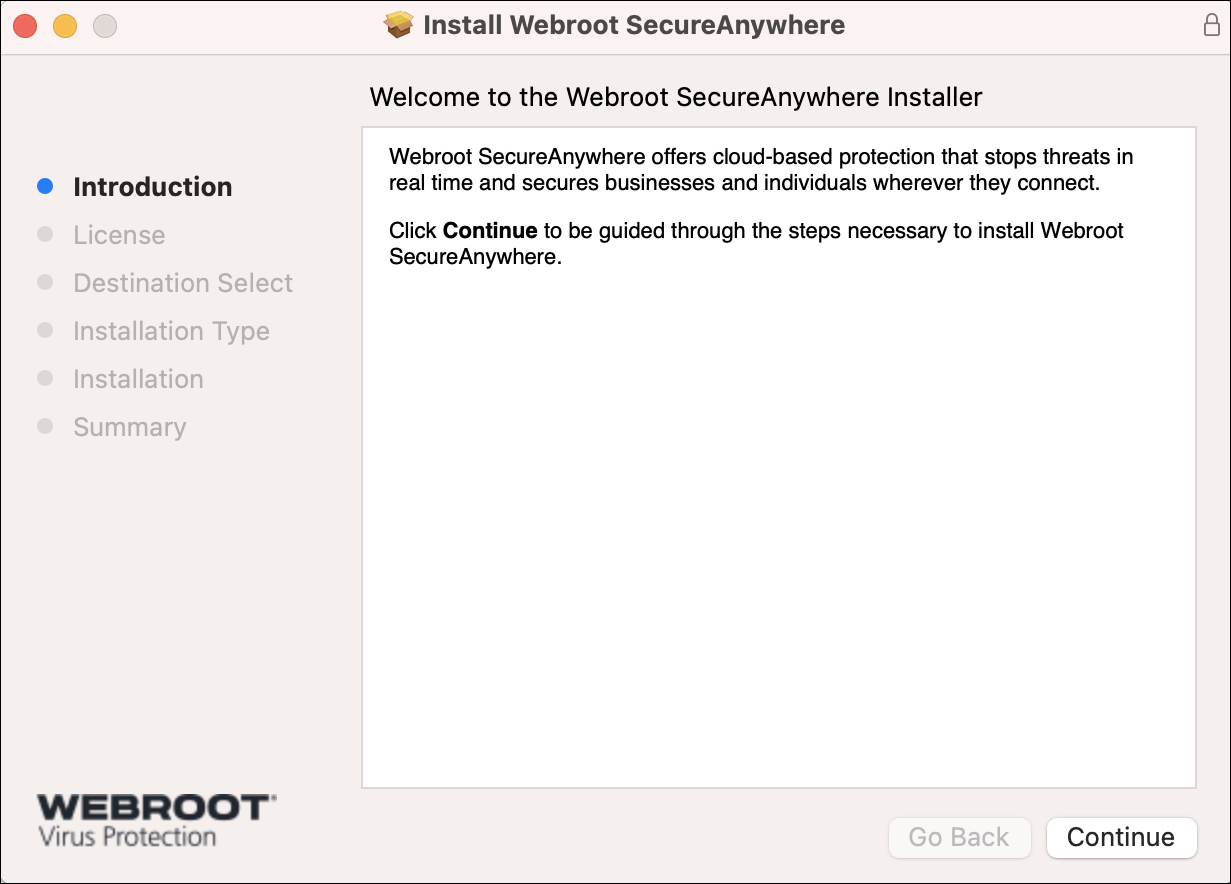
- Click Continue.
- Click Agree.
- Click Install.
- In the pop-up, enter your User Name and Password, and click Install Software.
- Click Close.
- After a short delay, Webroot SecureAnywhere will launch the activation dialog. Enter your keycode and click Activate Software.
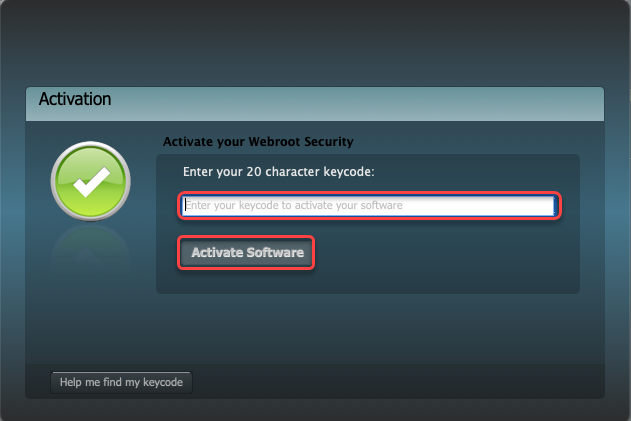
Note: Your keycode is the 20-character license that identifies your Webroot account. This keycode also identifies whether you purchased a multi-user license, which allows you to install SecureAnywhere on the total number of devices you purchased on your subscription. View information on locating your keycode.
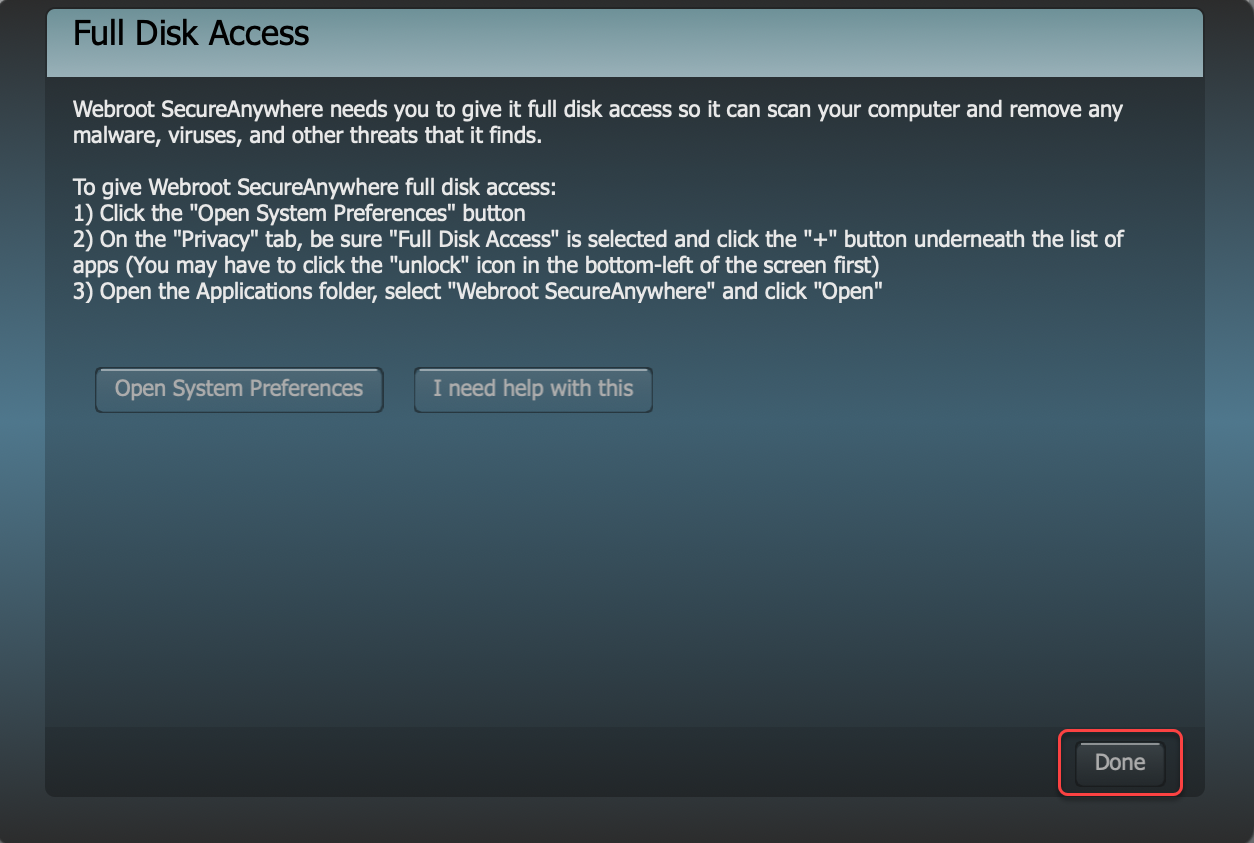
- Webroot SecureAnywhere may ask you to grant full disk access. In the Full Disk Access dialog box, click Open System Preferences. You should be taken directly to the Full Disk Access settings window.
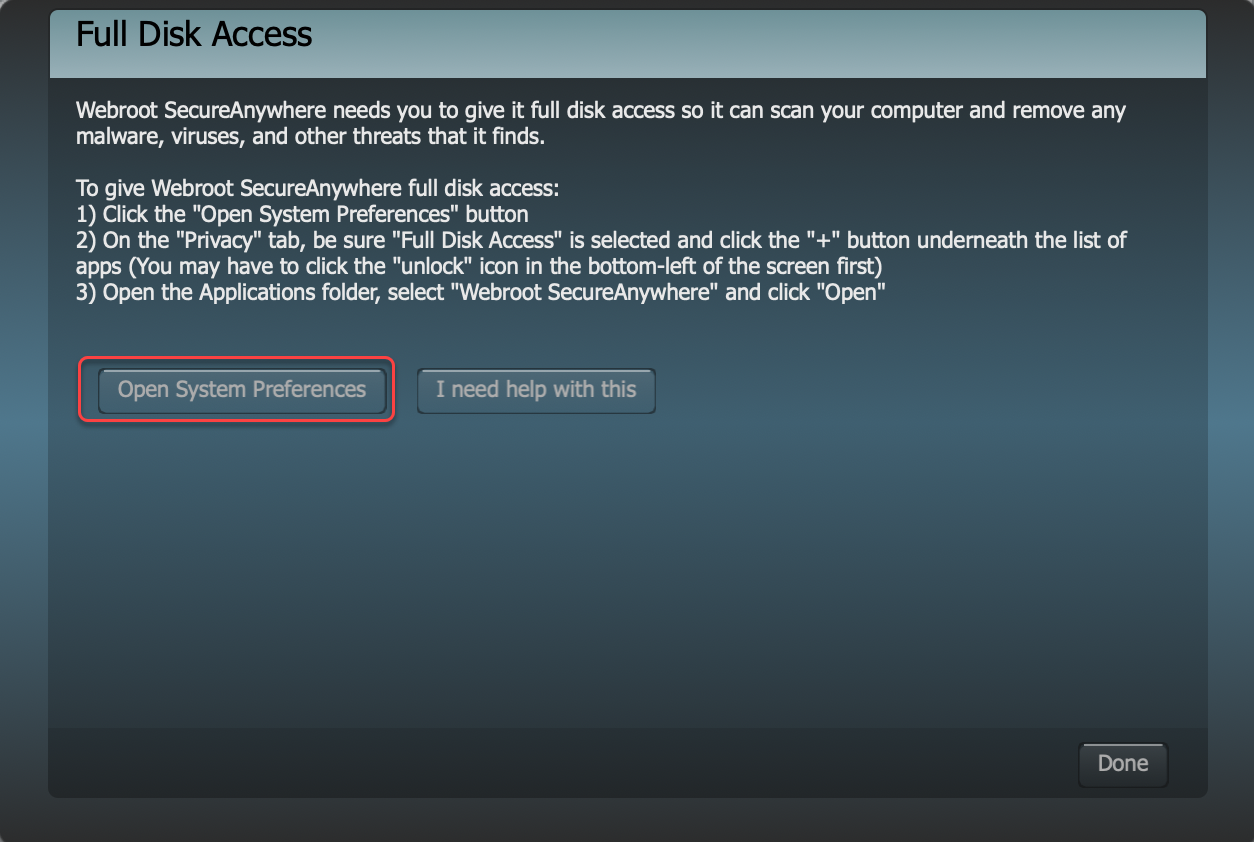
- If you are not taken directly to Full Disk Access settings, open your Mac's System Preferences.
- Click Security & Privacy.
- Select the Privacy tab and click Full Disk Access.
- If the Lock icon is in the locked position, click it.

- Enter your Mac's User Name and Password, and then click Unlock.
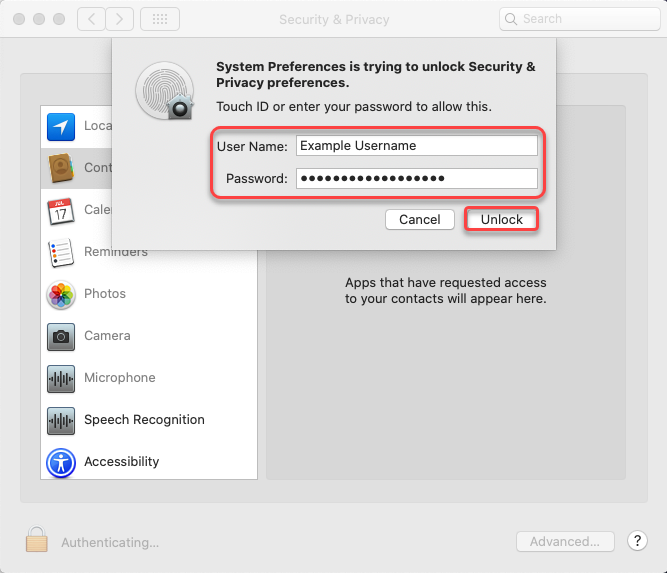
- In the Security & Privacy window, click the Add an application (+) button.
- Click the Applications tab, select Webroot SecureAnywhere, and click Open.
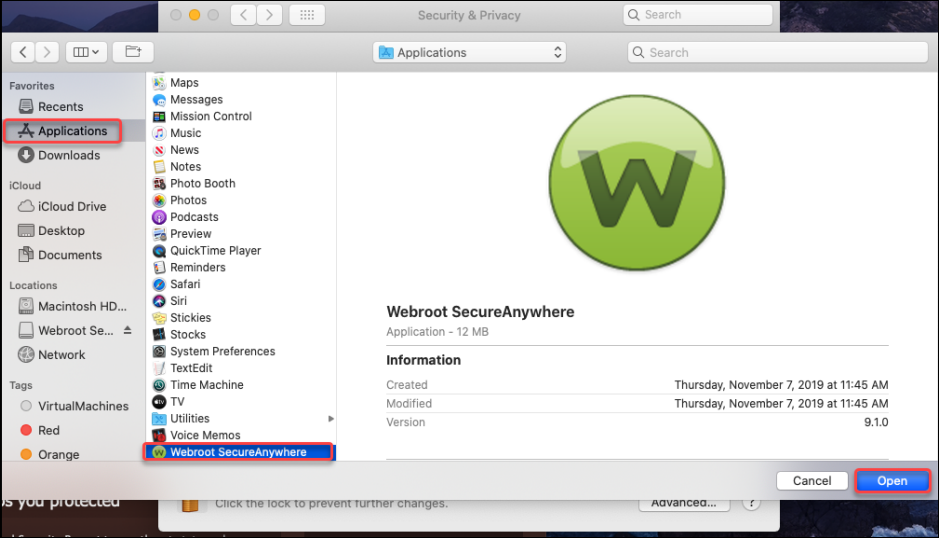
- In the dialog box that opens, click Quit & Reopen. When complete, Webroot SecureAnywhere appears in the Full Disk Access list of allowed applications with a checked box next to it.
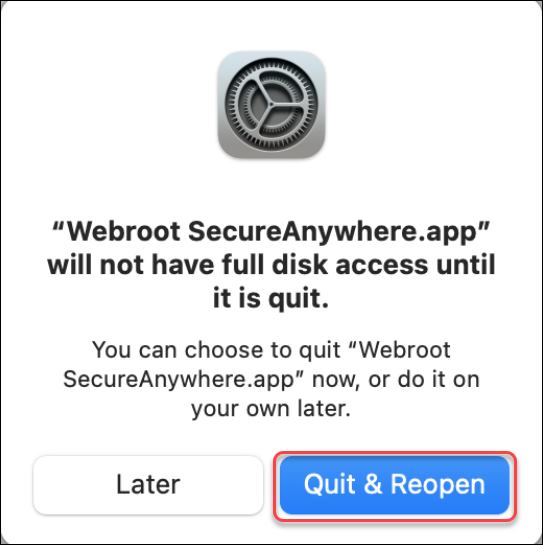
- Return to the Webroot SecureAnywhere window and click Done.
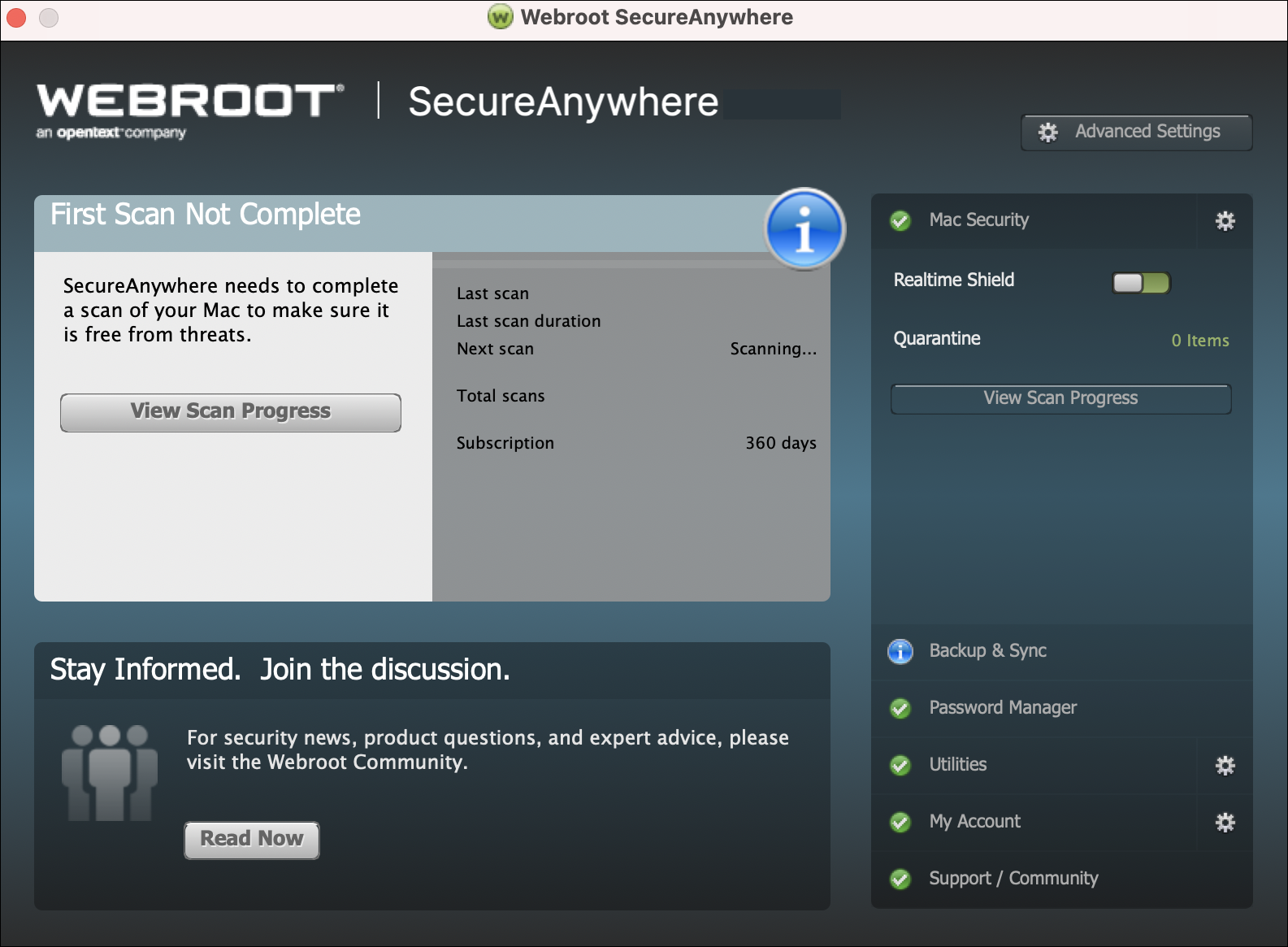
- The Webroot SecureAnywhere window turns blue as it begins scanning your Mac for viruses, spyware, and other potential threats.
- If the scan finds no threats, the window turns green when the scan completes.
- If it detects threats during the scan, the window changes to red and prompts you to move the infected items to quarantine. In quarantine, these items are rendered inoperable and can no longer harm your system or steal data.
|

