| Webroot | This solution addresses Webroot SecureAnywhere for mac OS.
Scan settings provide advanced users with a little more control over scanning performance.
To change the scan settings:
- Open the SecureAnywhere interface (click the Webroot icon
 in the menu bar, then select Open Webroot SecureAnywhere from the drop-down menu). in the menu bar, then select Open Webroot SecureAnywhere from the drop-down menu).
- From the menu bar, select Webroot SecureAnywhere, then Preferences.
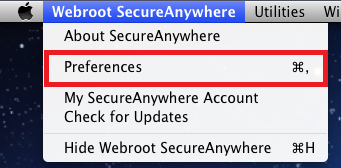
- In the Preferences window, select Scan Settings.
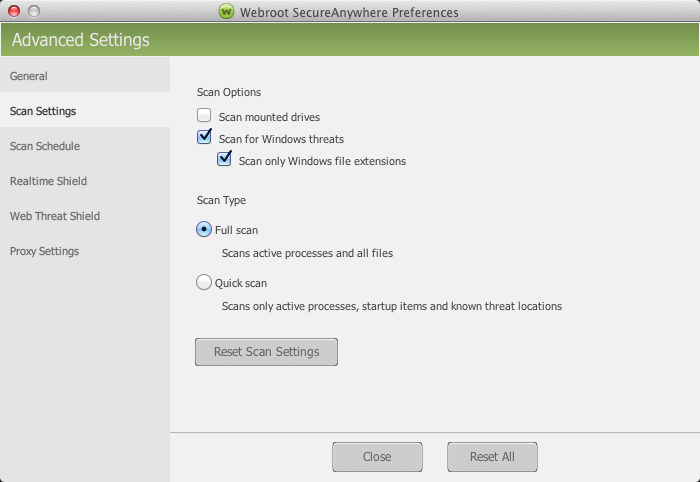
- If desired, select the Scan mounted drives checkbox to include USB flash drives, external hard drives, disk image files, and other types of "mounted drives."
- The Scan for Windows threats option will automatically be selected. This pertains to threats that may be carried on the Mac, but are designed to attack Windows machines.
- The Scan archived files is automatically selected. This option determines that archived files such as .ZIP are inlcluded in the scan.
- Under the Scan Type area, select one of the following radio buttons:
-
Full scan — A Full scan thoroughly searches for all types of threats in all areas. This is the default scan that runs automatically.
-
Quick scan — A Quick scan is a surface scan of locations where threats are commonly found. This scan runs quickly, but may miss some types of inactive malware that launch after a system reboot
-
As needed, do either of the following:
-
To return to the recommended Scan settings, click the Reset Scan Settings button.
-
To return to the recommended settings for all preferences, click the Reset All.
-
Click Close.
|

