| Webroot | This solution addresses Webroot SecureAnywhere for mac OS
For more control over scans and shielding behavior, use the Detection Configuration to specify one of the following actions:
- Allow: Ignore a file during scans and shielding.
- Block: Stop a file from executing or being written to your Mac.
- Monitor: Watch the program to determine if it is legitimate or related to malware.
To manage file detection:
- Open the SecureAnywhere interface (click the Webroot icon
 in the menu bar, then select Open Webroot SecureAnywhere from the drop-down menu). in the menu bar, then select Open Webroot SecureAnywhere from the drop-down menu).
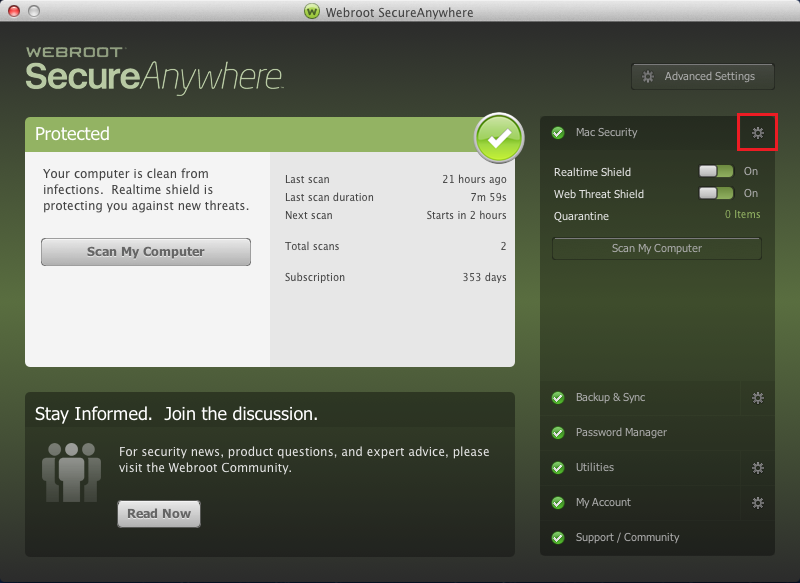
- From the main window, click the gear icon next to Mac Security.
- From the Mac Security window, click the Block/Allow Files tab.
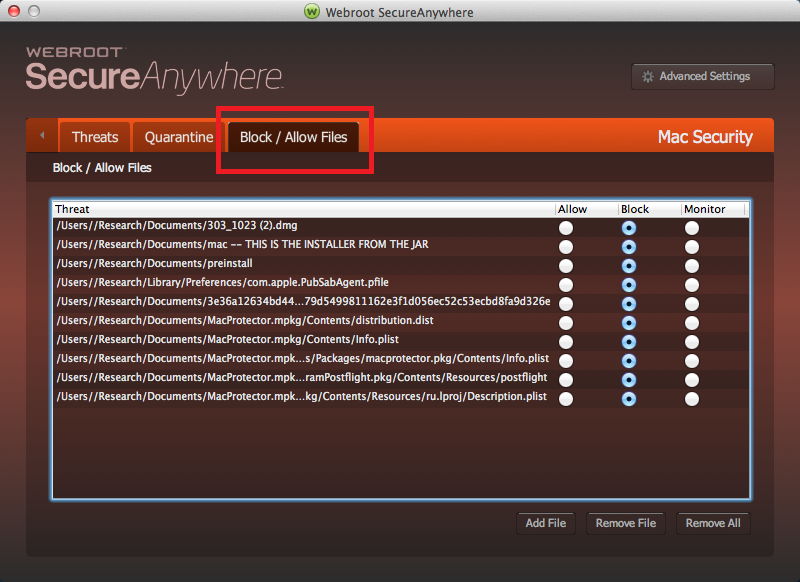
This list includes files you may have restored (allowed). You can also add files to this list. You can change the configuration for files already listed in this panel, or you can include other files by clicking the Add File button.
- In the right column, select the radio button for either Allow, Block, or Monitor.
If you want to clear an item from the list, click either the Remove File or Remove All button.
|

