| Webroot | Summary:
Set up and manage your LastPass account through the My Account Portal.
This article applies to:
| Products |
Platforms |
| LastPass |
Portal |
Solution:
- Log in to your My Account Portal.
- In the Downloads tab, under My Available Downloads, click Activate.
Note: If you have activated LastPass, but need to finish setting up LastPass, the button will show as Account Setup.
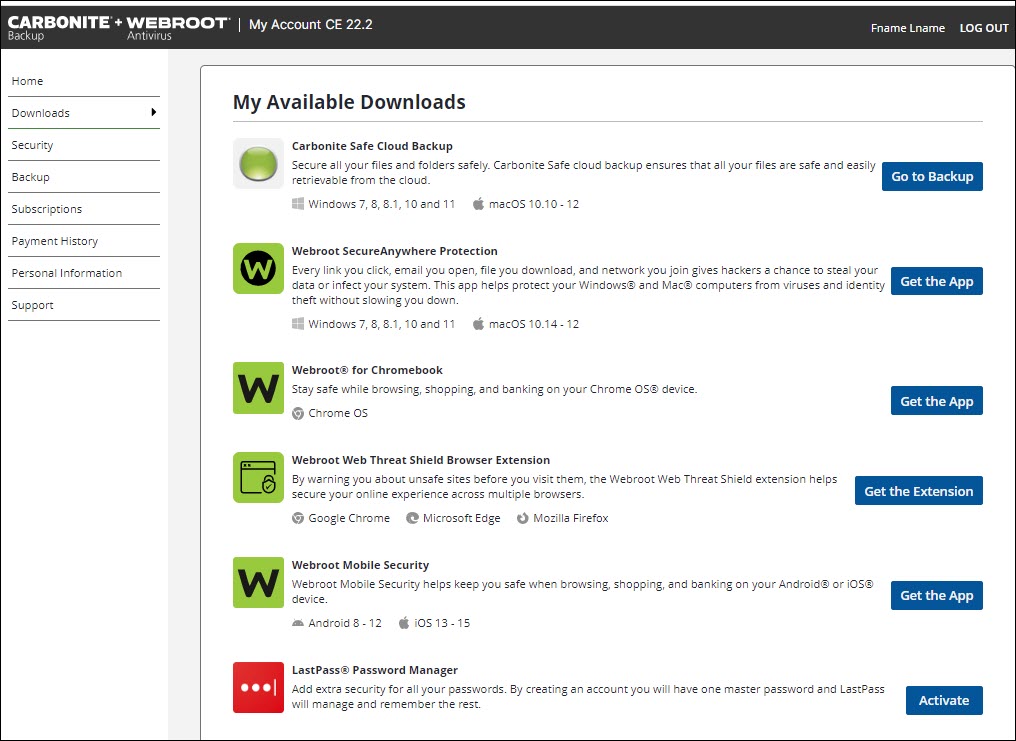
- Once the activation is complete, click the link to finish creating your LastPass account.

- Click Sign Up.

- Enter the following. Each section will turn green as it meets the requirements.
- Email: The same email as your Webroot Account email
- Password: The password to access your LastPass Account. A bar below the field will turn green once the password matches LastPass's requirements.
- Confirm Password: Repeat the Password.
Reminder (Optional): A field to put in a password hint. Do not put your actual password in here.

- Click Create Account. Your LastPass Account will be created and associated with your My Account Portal.
- If desired, click Continue and follow the prompts to load LastPass onto your browser.

Note: Once LastPass has been set up, you may log in to it by clicking Manage Account in the Downloads tab.
|

